
Spotify Guide
Everything you need to know about using your Spotify playlists for music bingo
Copy a Spotify playlist
How to find and copy the link from your phone

Find the playlist
Tap the small icon that looks like a person+ (red square)

Copy the link
Tap the "Copy link" button

Paste the playlist
Go to musingo.net, paste the link into the Spotify playlist ID field, and your bingo cards will be ready shortly.
Shuffle your playlist
Important: use the right shuffle button

Use the shuffle button
Make sure the small shuffle icon next to the play button is active when you start a new round of music bingo.

Avoid shuffle+
Be careful that the shuffle icon with the small plus is NOT selected — otherwise Spotify will automatically add songs to the playlist.
Make your playlist public
Musingo requires the playlist to be public

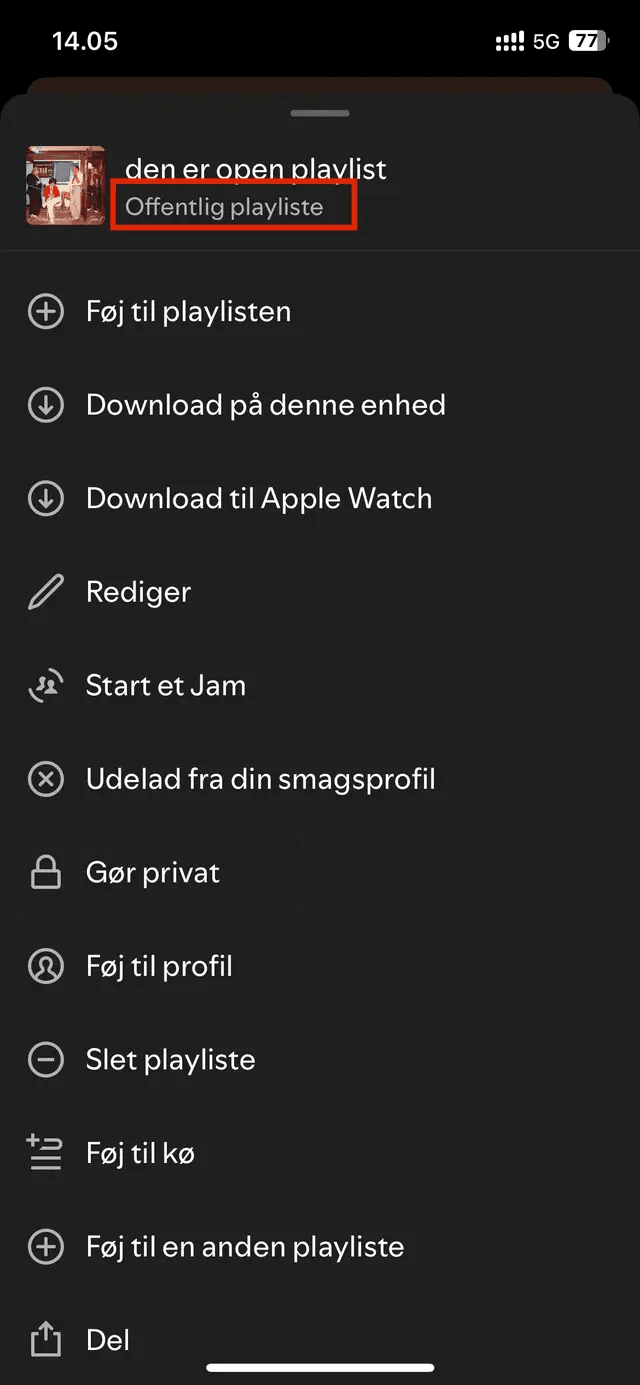
Open settings
Tap the 3 small dots at the top of the playlist.

Check visibility
If it says "Private playlist" under the playlist name, tap "Make public".
Playlist ready
Your playlist is now public and you can use it to create your music bingo cards.
Ready to make your bingo cards?
Now you know everything you need about Spotify. Let's get going!
Make your cards now